Hey, pattern makers!
Ready to take your designs from simple to stunning? One of the most powerful tools in your Patyrn toolkit is the Layers Panel. If you've ever felt like you're juggling too many elements on your canvas, or wished you could easily place one shape perfectly behind another, then this guide is for you.
Think of layers like a stack of clear, transparent sheets. You can draw something on each sheet. When you stack them up, you see the final, combined image. The Layers Panel in Patyrn gives you full control over that stack, letting you select, rearrange, and manage every single element in your design with precision and ease.
Let's dive in and see how it works!
Finding Your Layers Panel
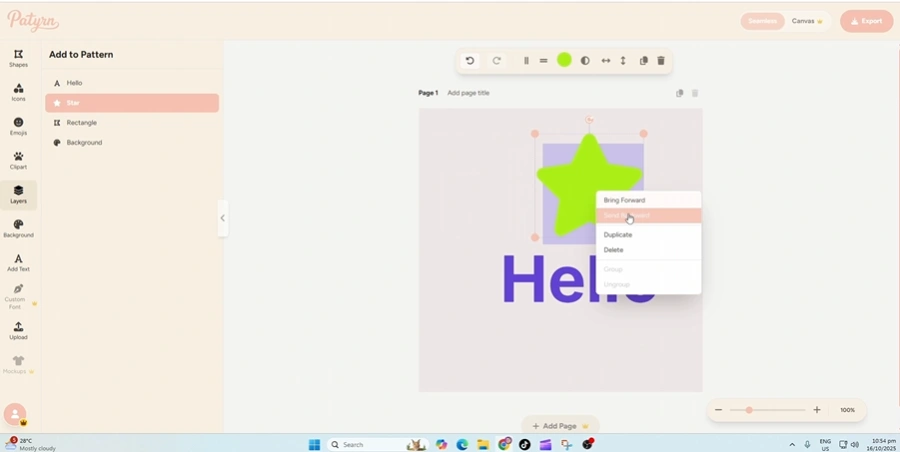
First things first, where do you find this magical panel? Look to the left-hand sidebar in the editor. You'll see an icon with stacked squares labeled "Layers".
Clicking this will open the Layers Panel, which displays a list of every shape, icon, text, or image you've added to your current page.
Understanding the Layer Stack
The Layers Panel shows your design elements in a top-to-bottom list. This list directly represents the stacking order on your canvas, which is crucial to remember:
Imagine you have a big blue square, a yellow star, and the word "Hello!". If your Layers Panel looks like this:
...then on your canvas, the text will appear on top of everything, followed by the star, with the blue square sitting at the very back. Simple, right?
Essential Layer Actions
The Layers Panel is more than just a list; it's an interactive command center for your design elements.
1. Selecting Shapes with Ease
Can't quite click that tiny shape tucked behind a larger one on the canvas? No problem! The Layers Panel makes selection foolproof.
2. Reordering Layers (Bring Forward, Send Backward)
This is where the real power comes in. Need that star to be behind the text but in front of the square?
When you hover your mouse over a layer in the panel, two small arrow buttons will appear on the right side.
Keep clicking until your element is exactly where you want it in the visual hierarchy of your design.
3. Editing the Background
At the very bottom of your layer list, you'll always find the Background layer. Clicking this is the quickest way to select your page's background. Once selected, the style panel will appear, allowing you to easily change the background color or upload a background image.
Why Layers Will Be Your New Best Friend
Mastering the Layers Panel is a key step in unlocking your full creative potential with Patyrn. It turns a potentially chaotic canvas into an organized and manageable workspace. So go ahead, open up that panel on your next project, and start stacking! You'll be creating more detailed and professional-looking patterns in no time.
Happy designing!