Welcome back to the Patyrn blog!
Today, we're diving deep into a simple yet powerful feature that can dramatically improve your pattern-making workflow: Zoom.
Whether you're aligning tiny details with pixel-perfect precision or stepping back to see the bigger picture, mastering the zoom controls is key to creating stunning, professional patterns. Let's get started!
Where to Find the Zoom Controls
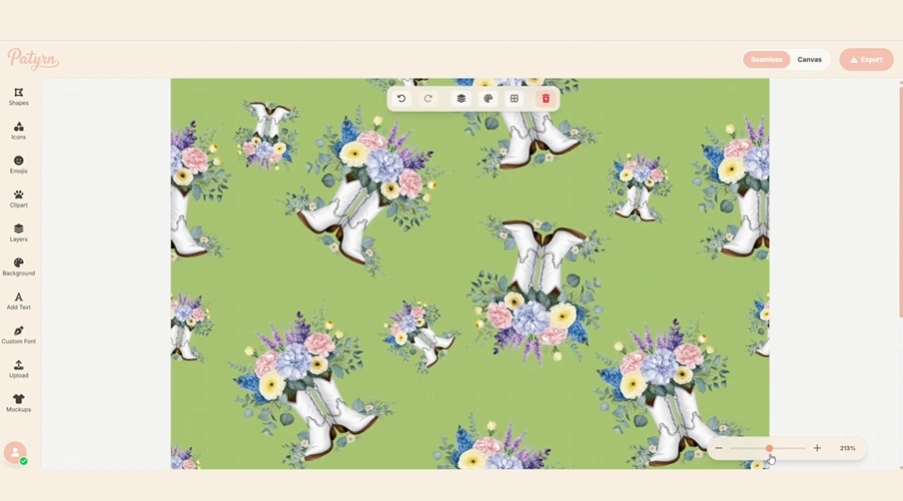
You'll find the dedicated Zoom Controls panel conveniently located at the bottom right corner of the main editor screen. It's designed to be accessible without getting in the way of your creative canvas.
The panel consists of a few key parts:
How to Control Your View
Getting the perfect view of your canvas is easy. Here are the different ways you can adjust your zoom level:
1. Simple Zoom In & Out
The quickest way to adjust your view is by using the plus (+) and minus (-) buttons.
Each click adjusts the zoom in set increments, making it perfect for quick adjustments.
2. Fine-Tuning with the Slider
For more precise control, use the slider located between the + and - buttons.
This is ideal when you need to find that "just right" magnification level for your current task.
3. See and Reset Your Zoom Level
The button in the middle of the control panel shows your current zoom level as a percentage (e.g., 100%, 250%). This isn't just a display—it's also a button!
Pro-Tips for a Faster Workflow
Want to work even faster? Many browsers and operating systems provide built-in zoom shortcuts that work seamlessly with Patyrn:
Keyboard Shortcuts:
Trackpad Gesture: If you're using a laptop with a trackpad, you can often use the pinch-to-zoom gesture to intuitively zoom in and out of your canvas, just like on a smartphone.
When Should You Zoom?
Knowing when to zoom is just as important as knowing how.
Zoom In For:
Zoom Out For:
By incorporating these simple zoom techniques into your creative process, you'll find yourself working more efficiently and with greater precision.
Happy pattern making!