Hey, pattern makers!
Today, we're diving into a simple but powerful feature that can be a lifesaver for any creative process: the Reset Page function.
Creativity is often a messy journey. You add an icon, change its color, add some text, resize it, duplicate it, and before you know it, your canvas is a little... chaotic. Sometimes, the best way forward is to wipe the slate clean and start fresh. That's where resetting comes in.
What Does "Reset Page" Actually Do?
Think of it as a magic eraser for a single page in your project. When you reset a page, it does two main things:
Most importantly, it only affects the current page. Your other pages, custom fonts, and project settings remain completely untouched. The page itself isn't deleted, just emptied, giving you a brand-new canvas to unleash your next great idea.
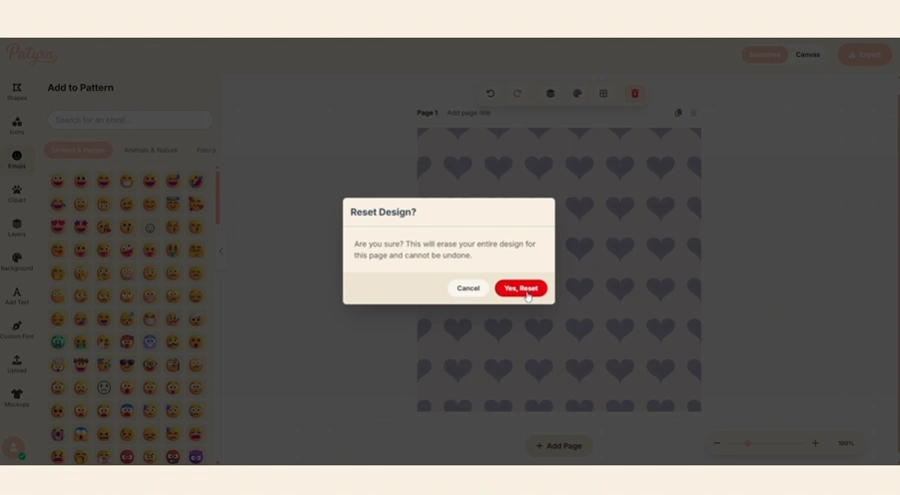
How to Reset a Page: Step-by-Step
There are two easy ways to access this feature.
Method 1: Using the Page Control Panel
This panel appears when you have the page itself selected (meaning no individual shapes are clicked).
Method 2: The Right-Click Menu (The Speedy Way)
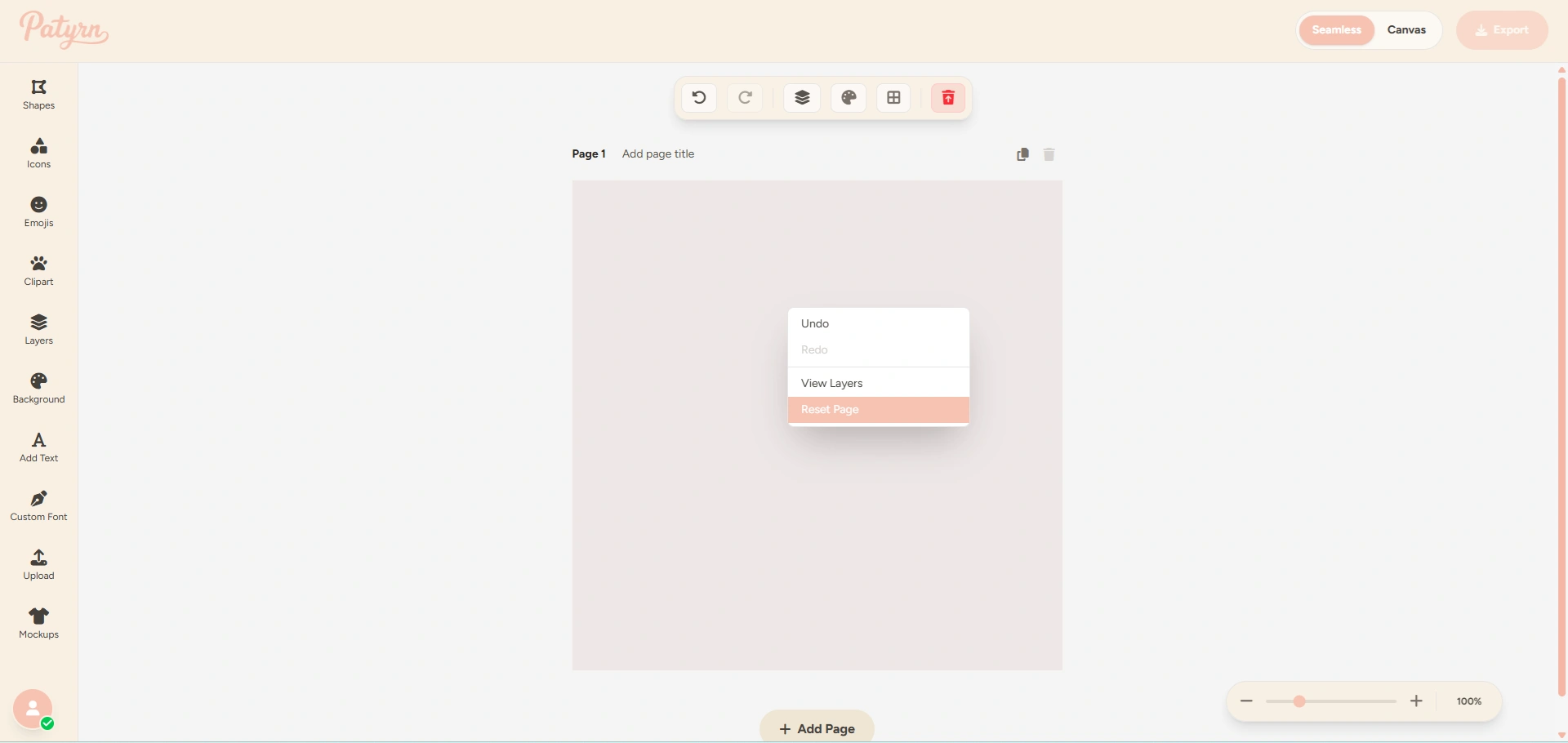
For even faster access:
Pro-Tip: Duplicate Before You Reset!
Feeling hesitant about clearing a design you've spent time on? Here's the best workflow: Duplicate the page first!
This creates a perfect copy of your work, giving you a safe backup. You can then freely reset the original page to try out a new idea. If you don't like the new direction, you can always delete the reset page and go back to your duplicated design.
To duplicate a page, just click the "copy" icon in the header of any Page Card.
Reset vs. Delete: What's the Difference?
3. Editing the Background
At the very bottom of your layer list, you'll always find the Background layer. Clicking this is the quickest way to select your page's background. Once selected, the style panel will appear, allowing you to easily change the background color or upload a background image.
Go Create!
Don't be afraid to experiment and make a mess. The reset function is your safety net, ensuring you always have a clean canvas ready when inspiration strikes. Now, go make something amazing